Your First Game
Create your first playable ad game in PlayableLabs — from setup to export
Understanding the Game Hierarchy
PlayableLabs organizes content in three levels:
- Game — The top-level project (e.g., "Puzzle Quest Ad Campaign")
- Version — A snapshot of the game at a point in time (e.g., "v1.0", "v2.0-holiday")
- Variant — A customized copy of a version for a specific network or audience
This hierarchy lets you manage multiple campaigns, A/B tests, and network-specific builds from a single game project.
Creating a Game
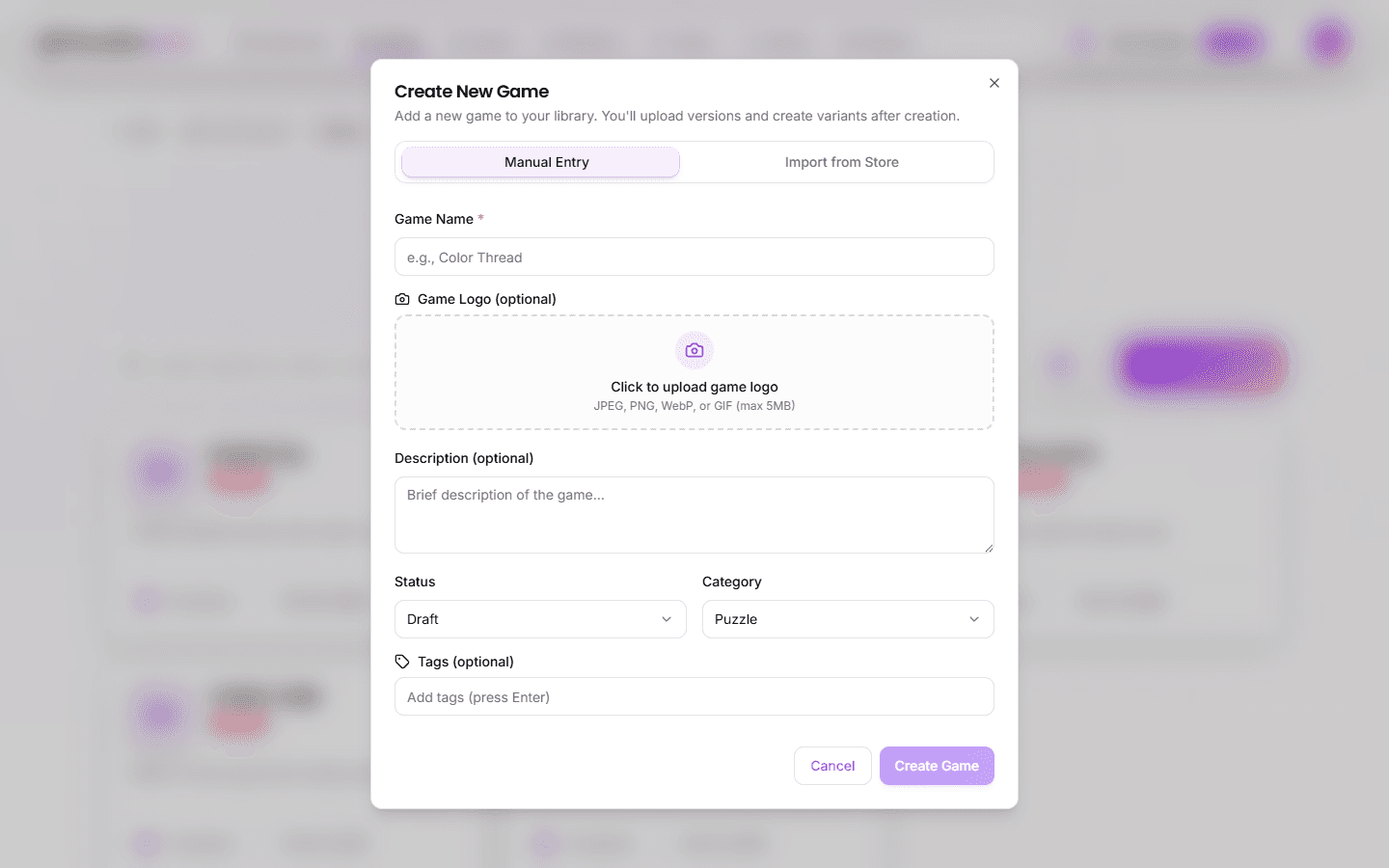
The Create Game dialog offers two creation modes:
Manual Entry
- From the Dashboard, click Create Game
- Select the Manual Entry tab
- Fill in the game details:
- Game Name — A descriptive name for your project (required)
- Game Logo — Optional square logo (JPEG, PNG, WebP, or GIF, max 5MB)
- Game Category — Select from categories (Puzzle, Casual, Action, etc.)
- Description — Optional context for your team
- Status — Set as Draft, Active, or Archived
- Tags — Add tags for organization (press Enter to add)
- Click Create
Store Import
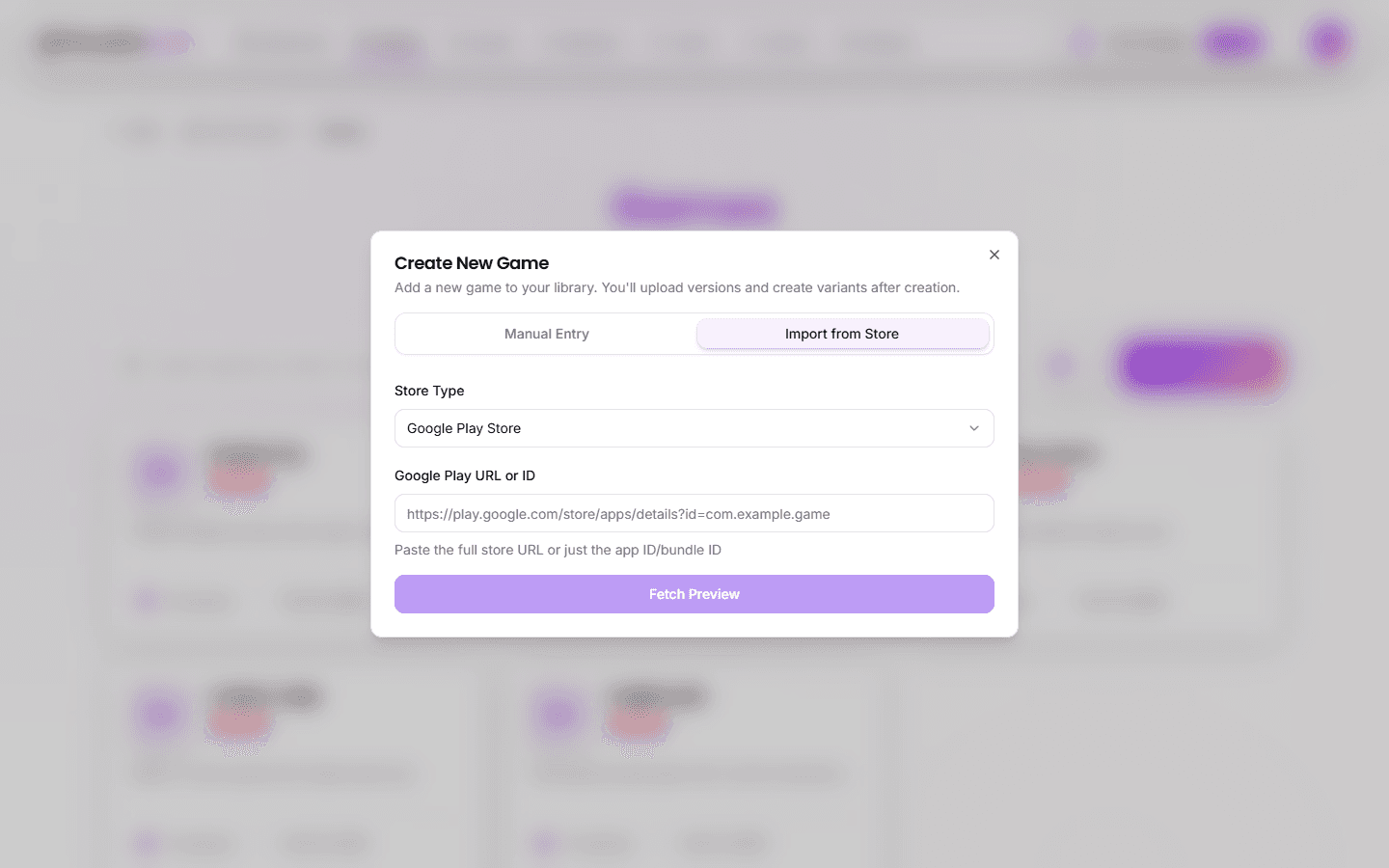
Import game metadata from app stores:
- Click Create Game
- Select the Import from Store tab
- Enter an App Store or Google Play URL
- Review the imported metadata (name, description, logo, category)
- Click Use This Data to populate the manual form
- Edit any fields as needed and click Create
Tip: Use clear naming conventions like
[Client] - [Campaign] - [Date]to keep projects organized as your library grows.
Creating a Version
Versions are created at the game level and contain your playable ad build:
- Open your game
- Go to the Versions tab
- Click New Version
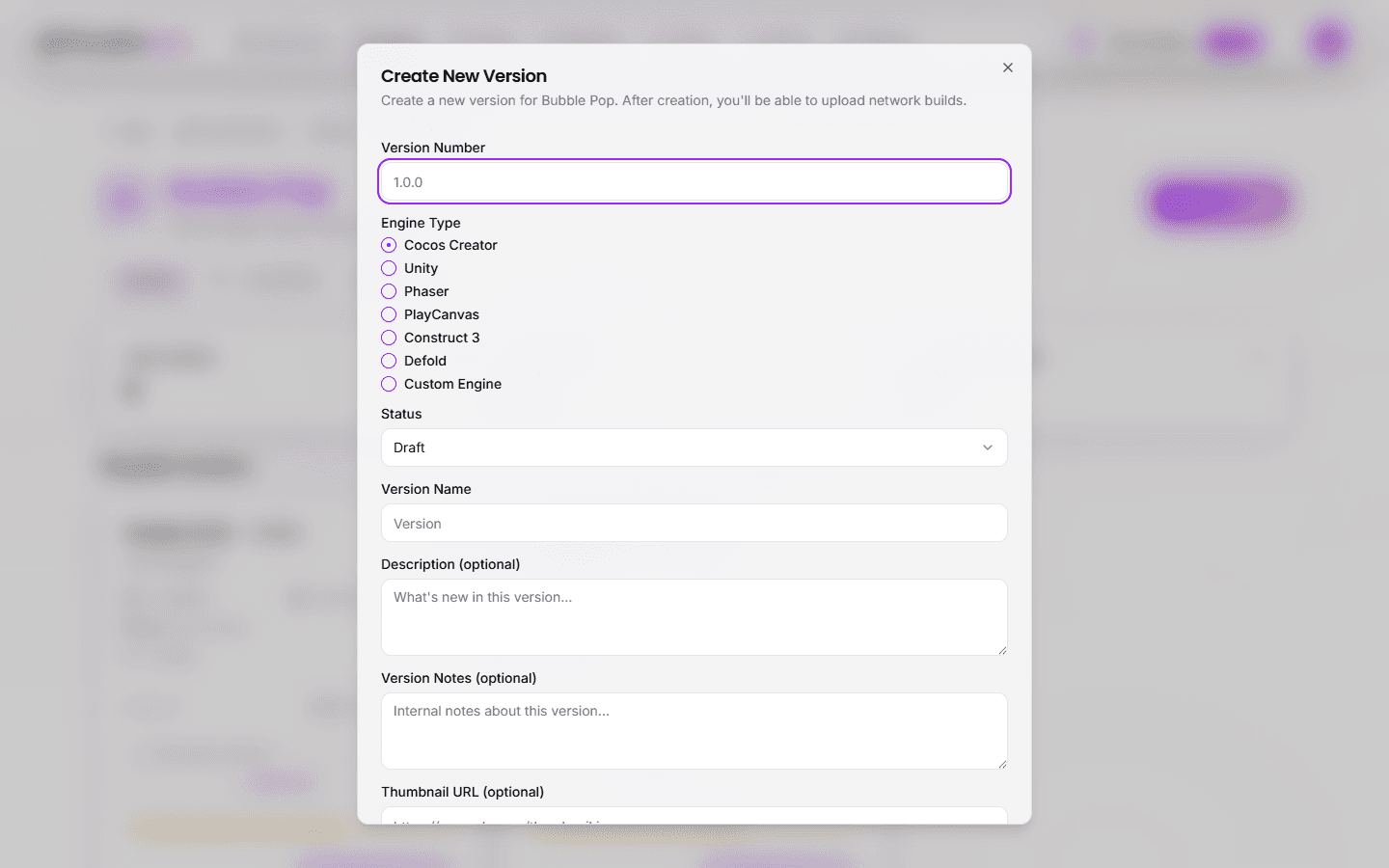
- Fill in the version details:
- Version — Semantic version number (e.g., "1.0.0")
- Name — Display name for this version
- Description — Optional notes about this release
- Engine Type — Select the rendering engine (COCOS, UNITY, PHASER, PLAYCANVAS, CONSTRUCT, DEFOLD, CUSTOM)
- Status — DRAFT, TESTING, APPROVED, PUBLISHED, or ARCHIVED
- Parameters — Upload JSON parameters or use the editor
- Upload your playable ad assets to this version
- Click Create Version
Note: Assets are uploaded at the version level, not the game level. Each version maintains its own asset bundle.
Versions act as snapshots. You can always create a new version without affecting existing ones.
Next Steps
Great — you've created a game and set up your first version! Next, learn how to invite your team to collaborate.