Team Management
Change roles, review activity logs, and configure team settings in PlayableLabs
Overview
Team management in PlayableLabs goes beyond adding and removing members. This page covers changing roles, using the activity log for auditing, and applying best practices for secure team operations.
Searching Members
Use the search bar at the top of the Members page to quickly find team members by:
- Email address -- Full or partial match
- Name -- Full or partial match
The member count updates dynamically as you type.
Member Information Display
Each member card shows:
- Avatar -- Profile picture or initials
- Name and email
- Join date -- When they joined the organization
- Last active -- Most recent login timestamp (if available)
- Role badge -- Current organization role with icon
Pending Invitations Tab
Managers, Admins, and Owners see a separate Pending Invitations section showing:
- Email of invited user
- Role assigned in invitation
- Who sent the invitation
- Expiration date
Managing Pending Invitations
From the actions dropdown (⋮) you can:
- Resend Invitation -- Send the invitation email again
- Revoke Invitation -- Cancel the invitation and invalidate the link
Changing Roles
Owners and Admins can change any member's role (subject to hierarchy rules).
- Navigate to Members in the sidebar
- Find the member whose role you want to change
- Click the actions menu (⋮) next to their name
- Select Change Role
- Choose the new role from the dialog
- Click Confirm
Role Change Rules
- Owners can change any member's role, including promoting someone to Admin
- Admins can change roles for Managers, Members, and Viewers, but cannot manage other Admins or the Owner
- You cannot change your own role -- another Owner or Admin must do it
- Role changes take effect immediately; the member's session updates on their next page load
Activity Log
PlayableLabs logs every significant action within your organization. The activity log provides a complete audit trail.
For detailed activity tracking with stats cards, color-coded badges, filtering, and CSV export, see Activity Logs.
Team Groups
Team groups let you organize members by project, department, or function. They affect game visibility when games are set to Team visibility mode.
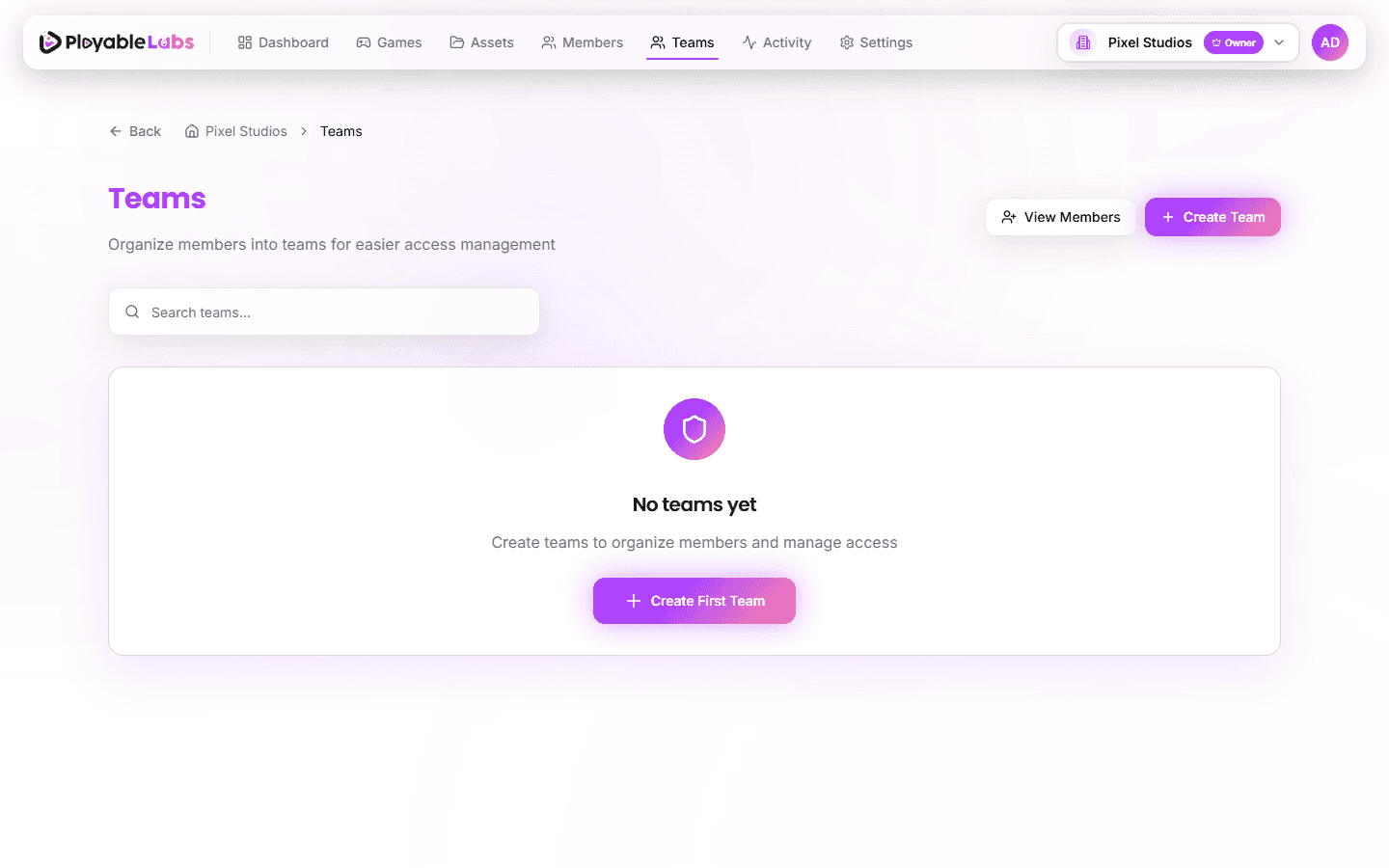
Creating a Team Group
- Go to Teams in the sidebar
- Click Create Team
- Enter a team name and optional description
- Add members to the team
- Click Save
Managing Team Groups
- Add/remove members from the team detail page
- Edit team details (name, description)
- Delete a team (members are not removed from the organization)
Note: Any organization member can join a team, but only Owners and Admins can create or delete teams.
Security Best Practices
Access Control
- Regular audits -- Review team members and roles quarterly
- Remove inactive accounts -- Promptly revoke access for people who no longer need it
- Separate environments -- Use different organizations for production and staging work
Role Assignment
- Start minimal -- Begin with Viewer or Member and promote as needed
- At least two Admins -- Ensure continuity if one Admin is unavailable
- Limit Owner count -- Only one Owner per organization (enforced by the system)
- Use Manager wisely -- For leads who need content control but not team management
Monitoring
- Check the activity log weekly for unexpected actions
- Watch for bulk removals or unusual role changes
- Review pending invitations to ensure no unauthorized access attempts
Common Scenarios
Onboarding a New Team Member
- Owner or Admin sends an invitation with the Member role
- New member accepts the invitation and signs in
- Admin adds them to the relevant team group
- Member gains access to team-assigned games
Offboarding a Team Member
- Admin removes the member from all team groups
- Admin removes the member from the organization
- The
MEMBER_REMOVEDevent is logged - The former member loses all access immediately
Promoting a Member to Manager
- Admin clicks the member's role badge
- Selects Manager from the dropdown
- The
MEMBER_ROLE_CHANGEDevent is logged - The member immediately gains Manager-level permissions
Next Steps
- Team Members -- Inviting and removing members
- Roles and Permissions -- Full permission matrix