Variants
Create network-specific and A/B test variants of your playable ad versions
What Are Variants?
A Variant is a customized copy of a version, tailored for a specific ad network, audience, or test scenario. Variants inherit everything from their parent version but let you override parameters (text, colors, gameplay settings, media references) without modifying the original.
When to Use Variants
| Use Case | Example |
|---|---|
| Network customization | Different CTA button for Meta vs. Google |
| Localization | English variant and Japanese variant |
| A/B testing | Variant A with blue theme, Variant B with red theme |
| Audience targeting | Casual players vs. hardcore players |
Creating a Variant
- Open a game and navigate to the version you want to customize
- Go to the Variants tab
- Click New Variant
- Fill in the details:
- Name (required) — e.g.,
Meta - English,Google - Holiday Theme - Description — Notes about what makes this variant unique
- Name (required) — e.g.,
- Click Create
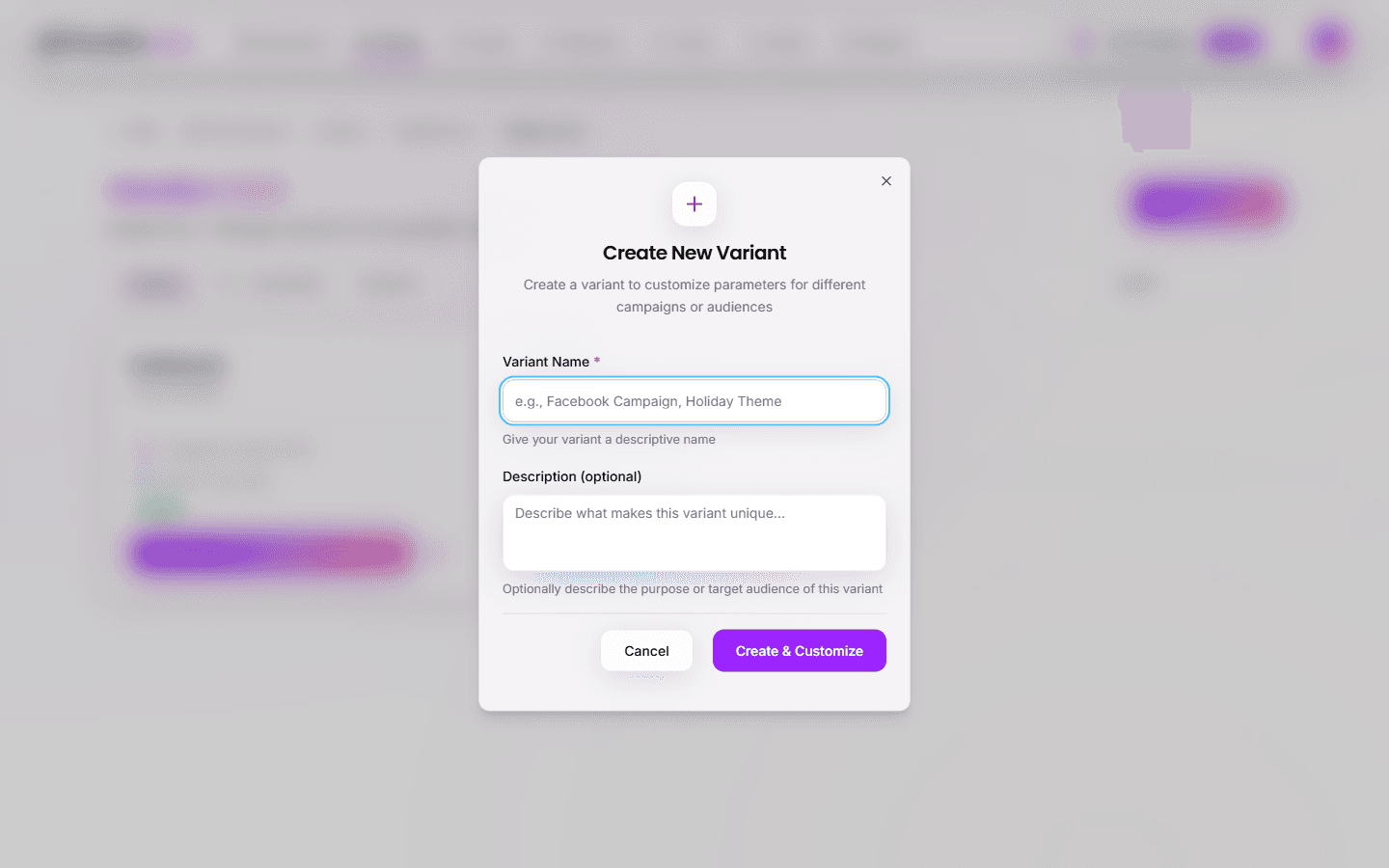
The variant starts as an exact copy of the parent version. You can then customize it independently.
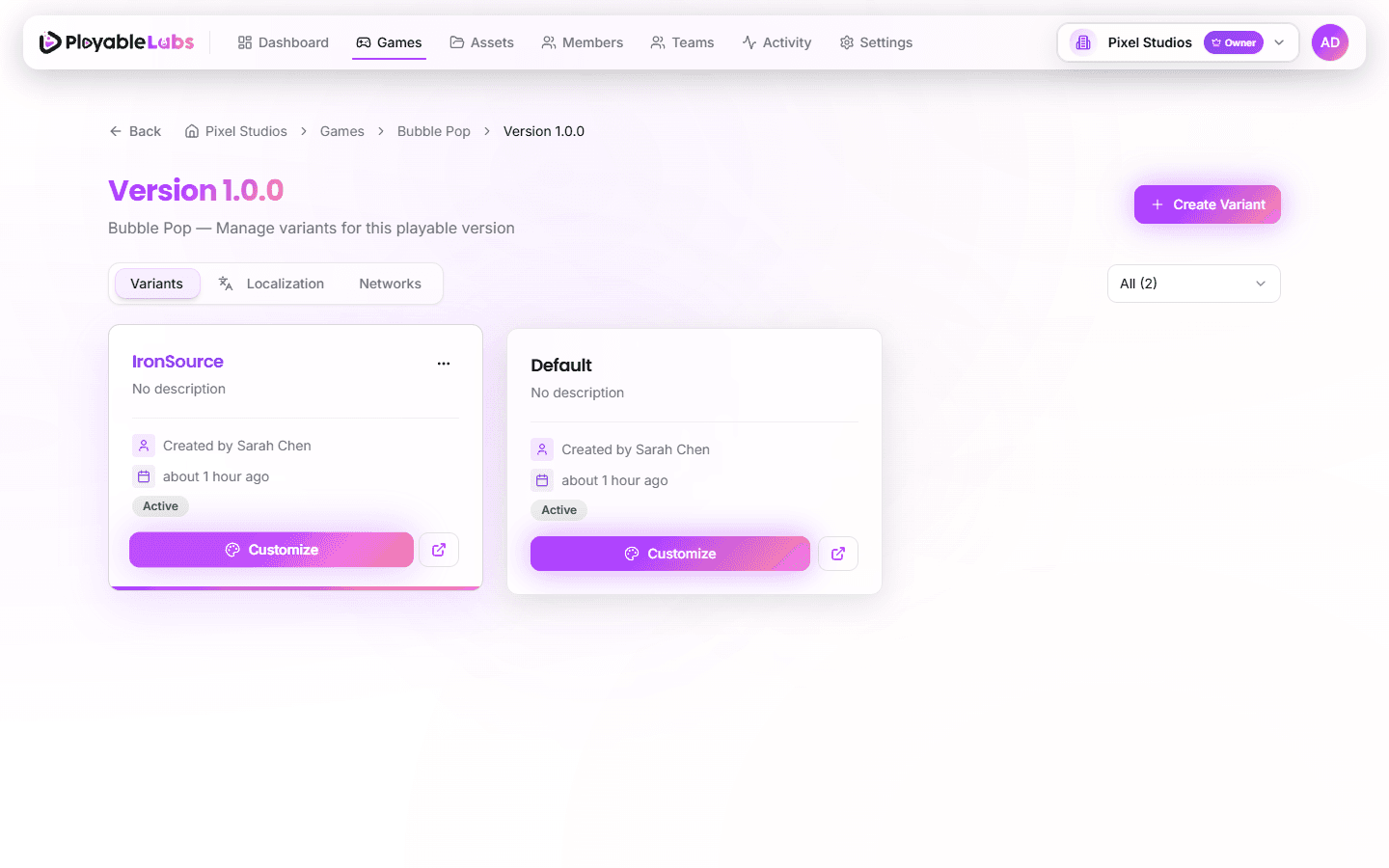
The variant card displays a preview image (if set) and the created by user attribution.
Customizing a Variant
Variants are customized through the Customization page, which provides a parameter editor with live preview. Navigate to a variant and click Customize to open the editor.
Parameters
Parameters are the primary way to customize variants. You can override values from the parent version:
- Text and labels — Localization, CTA copy, store links (Android/iOS)
- Colors and themes — Color values for UI elements
- Gameplay settings — Difficulty, timing, and other game configuration
- Media references — Image and audio asset URLs
Variants also support localization inheritance — translations from the parent version are automatically available, and you can override specific translations per variant as needed.
Overrides and Inheritance
Variants follow a hierarchical override model:
Organization defaults
 └── Game settings
      └── Version configuration
└── Variant overrides (highest priority)- Values not overridden in the variant are inherited from the parent version
- Overridden values are marked with an indicator in the UI
- You can reset any override to restore the inherited value
Tip: Only override what needs to change. This keeps variants maintainable and makes it easy to update the parent version.
A/B Testing with Variants
Variants are ideal for running A/B tests across ad networks:
- Create a base version with your core playable ad
- Create Variant A with the control experience
- Create Variant B with the test variation (e.g., different CTA, color scheme, or gameplay tweak)
- Export both variants for the same network
- Deploy each variant to a separate ad set in your network dashboard
Tips for A/B Testing
- Change one variable at a time — Isolate the effect of each change
- Use clear naming —
Meta - CTA Bluevs.Meta - CTA Red - Document hypotheses — Use the description field to record what you are testing
Managing Variants
Quick Actions
From the variant list, you can:
- Customize — Open the customization panel to edit parameters and preview changes
- Share — Generate a preview URL to share with team members or stakeholders
- Edit Settings — Change the variant name, description, or status
Duplicating a Variant
To create a copy of an existing variant:
- Open the variant menu (three dots)
- Select Duplicate
- Enter a new name and adjust settings
Deleting a Variant
- Open the variant menu
- Select Delete
- Confirm the deletion
Note: Deleting a variant removes its overrides and exports but does not affect the parent version or other variants.
Next Steps
- Export variants as optimized builds for each ad network
- Review the game hierarchy for a broader view of the structure